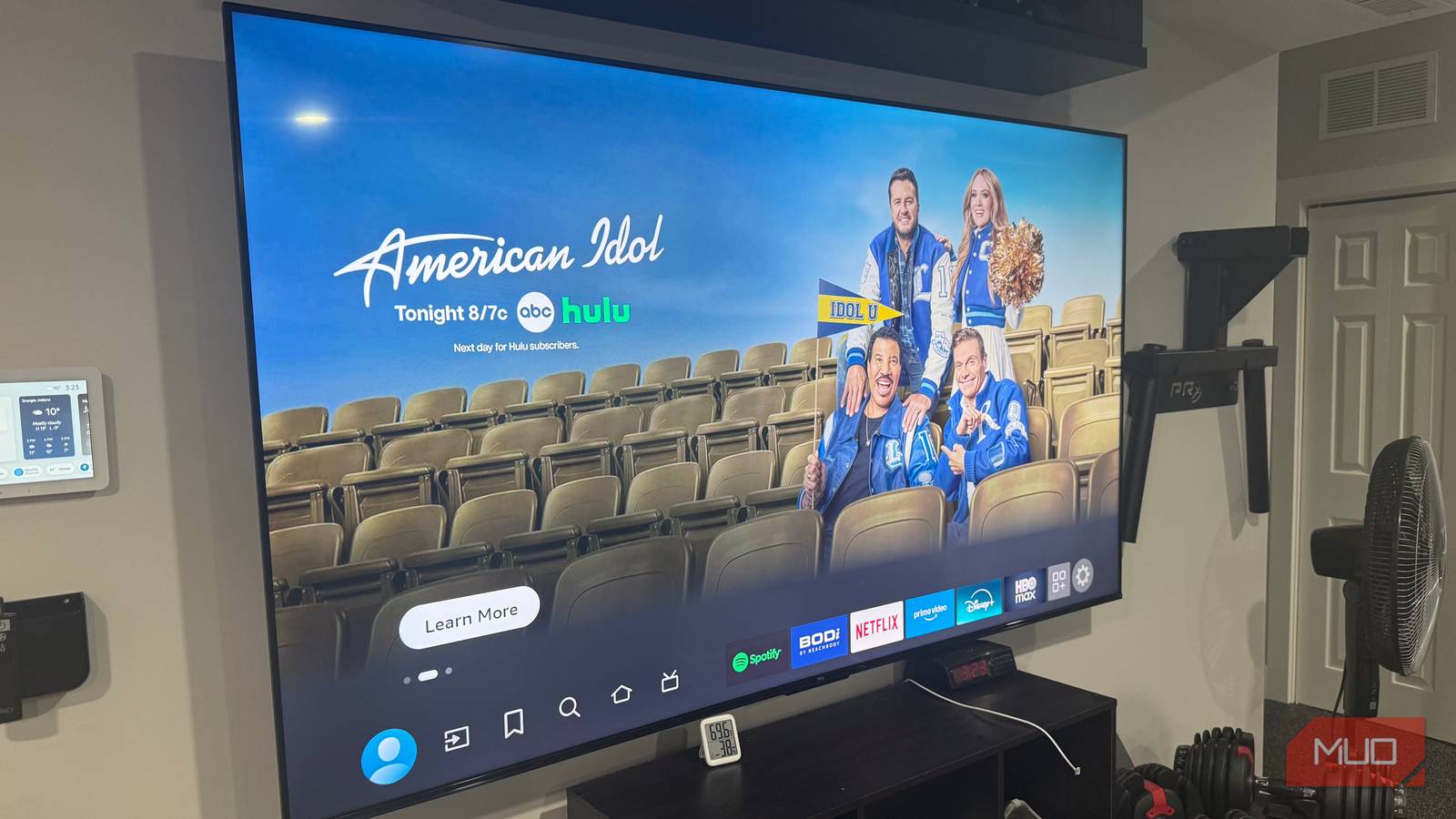
"The tools to reclaim your home screen have been there all along-they're just not obvious. I'd already customized other aspects of my Fire TV setup across both basement TVs, one in the main living area, and another in my home gym. But the constant advertising assault deserved its own focused session. Ten minutes later, my Fire TVs finally felt like devices I owned rather than storefronts with a streaming feature tacked on."
"The fix exists, but Amazon tucked it away under Settings > Preferences > Featured Content. Two toggles live here, and both deserve your attention. Allow Video Autoplay controls whether those promotional clips run automatically when your cursor lands on the top banner. Allow Audio Autoplay handles the sound separately, which means you could technically watch silent promos if that appeals to you for some reason."
Fire TV displays promotional video clips and audio on the home screen top banner. Two toggles under Settings > Preferences > Featured Content — Allow Video Autoplay and Allow Audio Autoplay — control whether clips run automatically and whether sound plays. Turning both toggles off prevents automatic playback and silences promotions, leaving static banner images. Fire TV logs opened apps and viewing time, which fuels personalized recommendations and targeted ads. Adjusting privacy, tracking, and personalization settings reduces algorithmic influence and targeted advertising. Applying these controls restores a quieter, more user-centric home screen experience.
Read at MUO
Unable to calculate read time
Collection
[
|
...
]